
Another option to add phones to the Cisco Unified Communications Manager database is by using auto-registration. By enabling auto-registration, you can automatically add a Cisco Unified IP Phone to the CUCM database when you connect the phone to your IP telephony network. During auto-registration, Cisco Unified Communications Manager assigns the next available sequential directory number to the phone.
In many cases, you might not want to use auto-registration; for example, if you want to assign a specific directory number to a phone. Of course the manual registration is the preferred way from security point of view as in this case you will be managing all of you phones manually and if some device appear in your network, it will be unusable until it is configured. Enabling autoregistration carries a security risk in that “rogue” phones can automatically register with Cisco Unified Communications Manager. You should enable auto-registration only for brief periods when you want to perform bulk phone adds. Another possible scenario to use auto-registration is when you have to configure some phone or multiple phones in a remote branch and you don’t have their MAC addresses. In this case you can configure the auto-registration option to register the phones and to assign them some numbers but to keep them in a pool where they cannot initiate any calls, except emergency. Configuring the automated registration in such way will guarantee that unauthorized devices can not use your IP Telephony network.
Task 1: Configure Auto-registration for SCCP Phones
Enable Auto-registration on Cisco Unified Communications Manager and register all IP phones in the San Jose site.
Activity Procedure
Complete these steps:
- Go to Cisco Unified Communications Manager Administration page and from the menu select System > Cisco Unified CM and click the Find button.
- From the list, there will be one Communications Manager.
- Click on publisher server (CM_CCM).
- On Cisco Unified CM page, under the Auto-registration Information, use the following parameters:
– Universal Device Template: Auto-registration Template
– Universal Line Template: Sample Line Template with TAG usage examples
– Starting Directory Number: 2001
– Ending Dirctory Number: 2002
– Uncheck Auto-registration disabled on this Cisco Unified Communications Manager checkbox to enable auto registration. - Click Save.
- Verify that Auto registration for the Cisco Unified Communications Manager group is enabled. From the menu select System > Cisco Unified CM Group, and click Find button.
- Click on Communications Manager Group called Default and ensure that Auto-registration Cisco Unified CM Group is checked. (Check box will be greyed out if only one CM group is defined)
- Start your Cisco IP Communicator softphones and make sure that their TFTP Server configuration is pointing to the CUCM node – 10.1.1.10.
- IP Phone1-1 and Phone1-2 will register automatically with the Cisco Unified Communications Manager server.
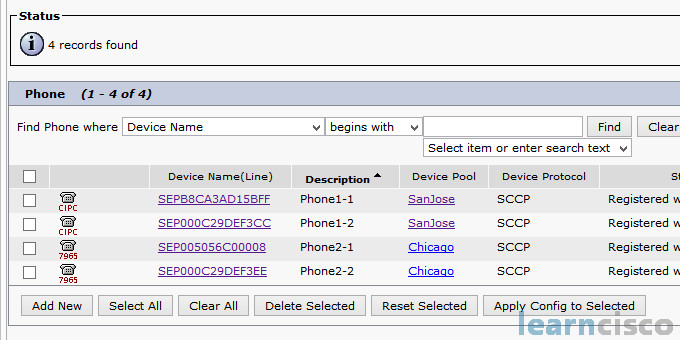
- On Cisco Unified Communications Manager Administration page, from the menu select Device > Phone. On Find and list phones, click Find button to list all IP Phones have been configured in the cluster.
- Click the Device Name of the phone with the Description “Auto 2001”
- Change the following parameters in the device level configuration:
– Description : Phone1-1
– Phone Button Template: Standard CIPC SCCP
– Device Pool : SanJose
– Device Security Profile: Cisco IP Communicator – Standard SCCP Non-Secure Profile - Under External Data Locations Information part clear the content of all fields.
- Click Save and then Reset the phone.
- Repeat steps 10 – 14 for Phone1-2, too.
Activity Verification
You have completed this task when you attain these results:
- Any call can be made between these IP Phones using the 4 digit numbers.
Our Recommended Premium CCNA Training Resources
These are the best CCNA training resources online:
Click Here to get the Cisco CCNA Gold Bootcamp, the most comprehensive and highest rated CCNA course online with a 4.8 star rating from over 30,000 public reviews. I recommend this as your primary study source to learn all the topics on the exam.

Want to take your practice tests to the next level? AlphaPreps purpose-built Cisco test engine has the largest question bank, adaptive questions, and advanced reporting which tells you exactly when you are ready to pass the real exam. Click here for your free trial.
